 QuorBots
Install MuMu Player and add your first account
QuorBots plays your games inside MuMu Player, a free Android emulator for Windows. This guide takes you from installing MuMu to your first account ready to play, in about fifteen minutes plus the game's own download.
Before you start
- QuorBots installed. If it isn't yet, download it here first.
- A Windows 10 or 11 PC (64-bit) with virtualization switched on. Most PCs have it on already; if yours doesn't, MuMu tells you, and the fix is below.
- A few GB of free disk space for each emulator and its game. You choose in QuorBots' Settings how many accounts play at once, so one at a time works on a modest PC.
1. Download and install MuMu Player
In QuorBots, open the Install page on the left and press Get MuMu Player. MuMu's website opens in your browser.
- Press Download for Windows and open the file when it has downloaded.
- In MuMu's installer, press Install now. It downloads the rest of MuMu and installs it, which takes a minute or two.
- When it finishes, MuMu opens its first emulator by itself. You can close it: QuorBots starts the emulators it needs.
2. Let QuorBots find MuMu
Back on QuorBots' Install page, press Refresh. QuorBots finds MuMu Player and lists its emulators, and the yellow "MuMu Player was not found" line in the log stops appearing.
3. Make an emulator for each game account
Every game account plays in its own emulator, so make one for each account you want played. In New instances, type how many you want and press Create instances.
QuorBots makes them and sets each one up the way the bot plays best. You don't need to change anything in MuMu yourself.
4. Put your game on them
- Pick the game in Game.
- Tick the emulators it goes on in the list, or press Select all.
- Press Install. QuorBots downloads the game and puts it on each emulator, one at a time. A big game takes a few minutes the first time; after that it is already downloaded.
Already have emulators from before? Tick them and press Prepare, and QuorBots puts their settings right for the bot.
5. Sign in to your game once
Open each emulator in MuMu Player, start the game and sign in to your account the way you normally do. You only do this once: the game remembers you, and from then on QuorBots starts the game itself.
Whiteout Survival is the one exception to know about: it won't let a new character be made on an emulator, so make the character on your phone first, then sign in to it here.
6. Add the account in QuorBots
- Open the Accounts page, add an account and type its name.
- Pick its emulator and its game, and switch it on.
- Press its Editor and tick the actions you want done for it, like gathering, upgrading or collecting free rewards.
Press Start, and QuorBots plays every account that is switched on, one after another, until you press Stop. Add more accounts the same way, one emulator each.
If MuMu says "Android device cannot run"
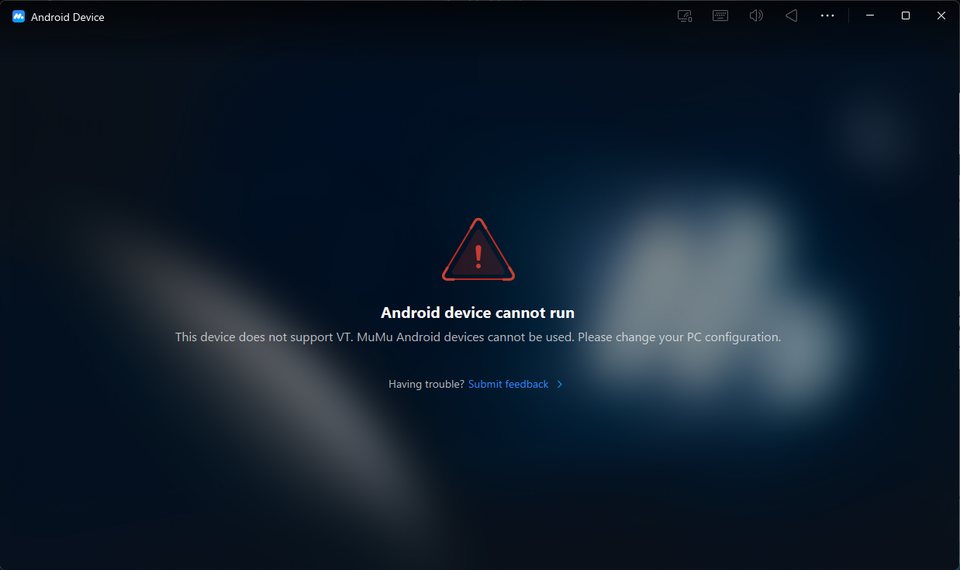
MuMu needs your PC's virtualization (VT), and this message means it is switched off. It's a setting in your PC's BIOS:
- Check first: open Task Manager, then Performance, then CPU. Virtualization should say Enabled.
- If it says Disabled, restart the PC and open the BIOS (usually by pressing Delete, F2 or F10 while it starts; your PC or motherboard's maker says which).
- Turn on Intel Virtualization Technology (VT-x) on an Intel PC, or SVM Mode on an AMD PC. Save, restart, and open MuMu again.
Still stuck?
QuorBots' log says what it is doing, and yellow or red lines say what needs a look. Press Bug Report to put the logs in one zip file, and send it to us from the Support page. The FAQ answers the common questions.